Data import overview
Open My Datasets to see files already in your account. The toolbar provides Upload Files, Import from Archives, Import from Illumina, and Import from Box.
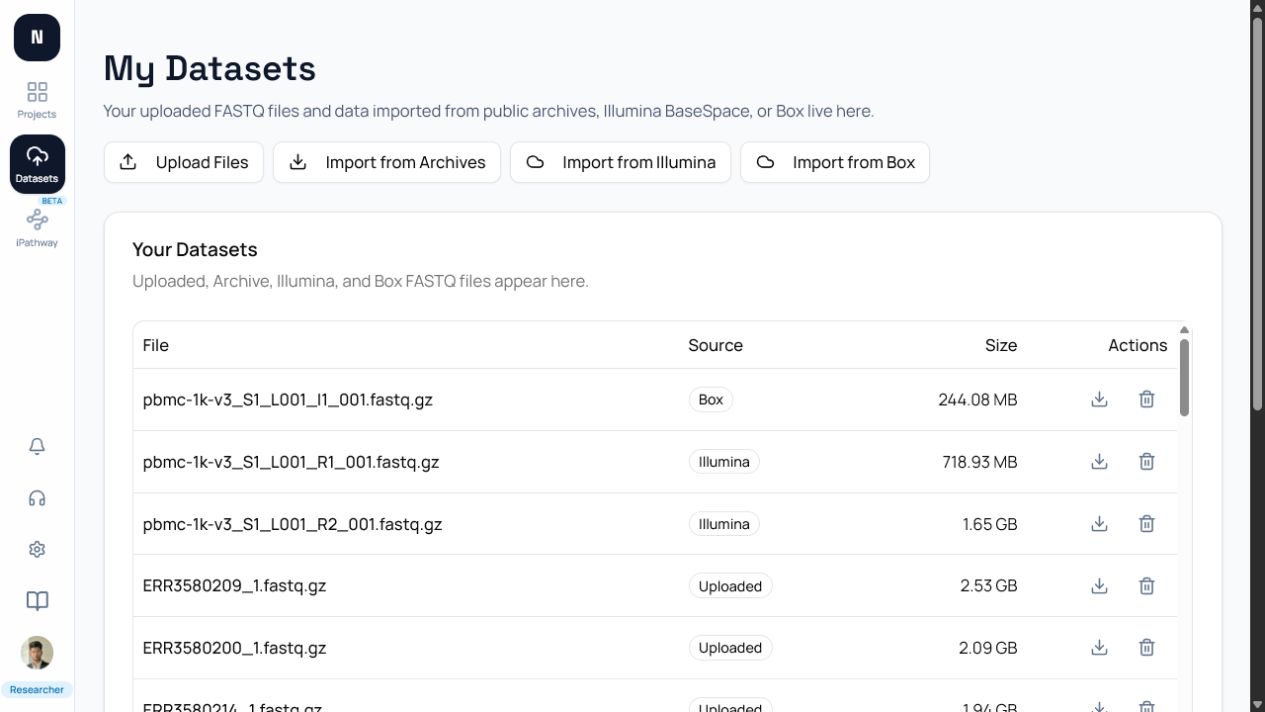
Account-level datasets and project samples
Section titled “Account-level datasets and project samples”Imports first create a dataset in your account. From a project’s Samples tab, choose Add Samples to attach existing datasets or start a new import. This keeps one uploaded dataset reusable across projects while project grouping remains project-specific.
Import history
Section titled “Import history”The import history shows queued, running, completed, and failed imports. Open a failed item for its error message before retrying. A completed import is not automatically an experimental group; add it to a project and group its samples before running analysis.
Duplicate handling
Section titled “Duplicate handling”Archive resolution marks runs already present in your account as duplicates and disables them in the selection list. Do not rename a duplicate to force a second copy. Confirm the existing dataset is attached to the intended project instead.
Pick an import method
Section titled “Pick an import method”- Use direct upload when files are on your computer.
- Use public archives for open NCBI, ENA, or DDBJ accessions.
- Use Illumina BaseSpace when FASTQ files are in a sequencer project.
- Use Box when a shared folder contains FASTQ files.