Import from Box
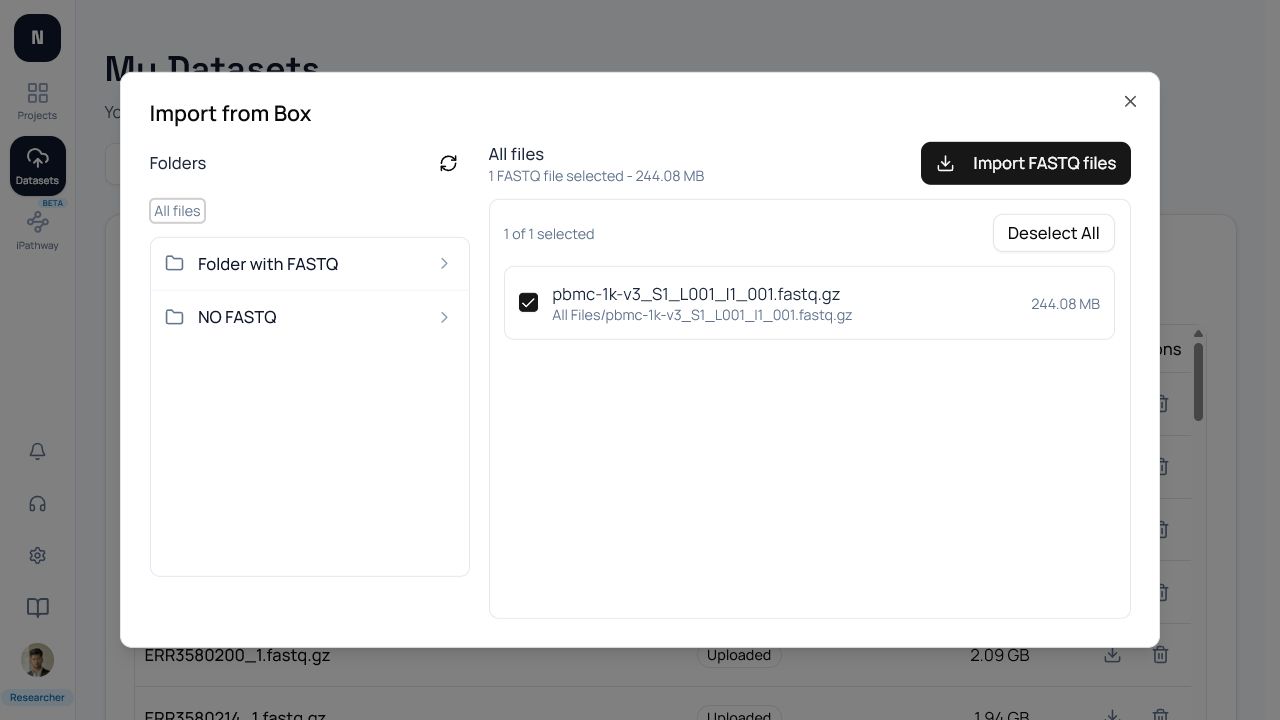
Choose Import from Box from My Datasets or connect Box under Settings → Integrations.
Permissions and folder access
Section titled “Permissions and folder access”The current NotchBio OAuth implementation requests Box root_readwrite scope, although this workflow only browses folders and downloads selected files; it does not upload, rename, or delete Box content. Box also applies the connected user’s own folder membership. A shared folder must be visible to that user as well as permitted to the application. See Box scopes and permissions.
Select FASTQ files
Section titled “Select FASTQ files”Navigate through the folder browser and select .fastq, .fastq.gz, .fq, or .fq.gz files. Empty folders and folders containing only unsupported files are not valid pipeline inputs. Review selected file names and total size before starting the import.
Verify the dataset
Section titled “Verify the dataset”Wait for the import to complete, then open the new dataset and check read pairing and sample names. If a shared folder is missing, ask the Box owner to grant the connected user access; reconnecting NotchBio cannot grant access that the Box user does not have.