Import from Illumina BaseSpace
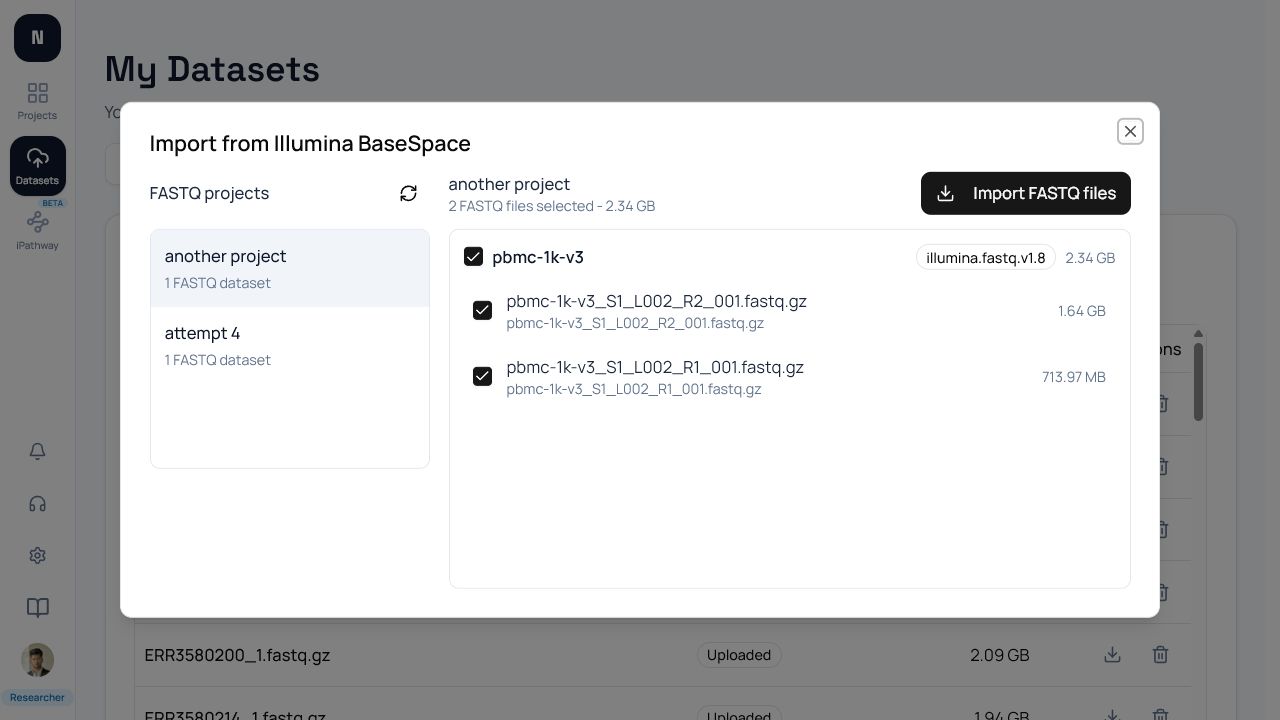
Open Settings → Integrations → Illumina or choose Import from Illumina from My Datasets.
Two permission steps
Section titled “Two permission steps”NotchBio uses the least information needed at each stage of discovery:
- The initial BaseSpace approval uses
browse globalto discover project metadata. This does not download project files. - When you choose a FASTQ project, BaseSpace asks for
read project <id>permission so NotchBio can download that project’s FASTQ files.
This is the same distinction described in Illumina’s OAuth scope documentation. If several discovered projects need access, the approval can include several project scopes.
Choose a FASTQ project
Section titled “Choose a FASTQ project”The importer lists projects containing completed FASTQ datasets. Select a project, review the file names and sizes, and choose the files to import. Empty, incomplete, or non-FASTQ datasets are not useful pipeline inputs.
Verify completion
Section titled “Verify completion”Track the import from My Datasets. After completion, open the dataset and confirm that paired reads are present and that the project’s organism and sample metadata are correct before grouping.
Reconnect or remove access
Section titled “Reconnect or remove access”Use the integration card to reconnect when authorization expires. Unlinking stops future browsing through BaseSpace; it does not delete datasets already imported into NotchBio. Review Manage integrations before removing a connection.